
Convert Word files to PDF in Moodle with Gotenberg
Moodle needs a document converter so teachers can annotate submitted Word files. Our free fileconverter_gotenberg uses Gotenberg, a server you run yourself with one Docker command.
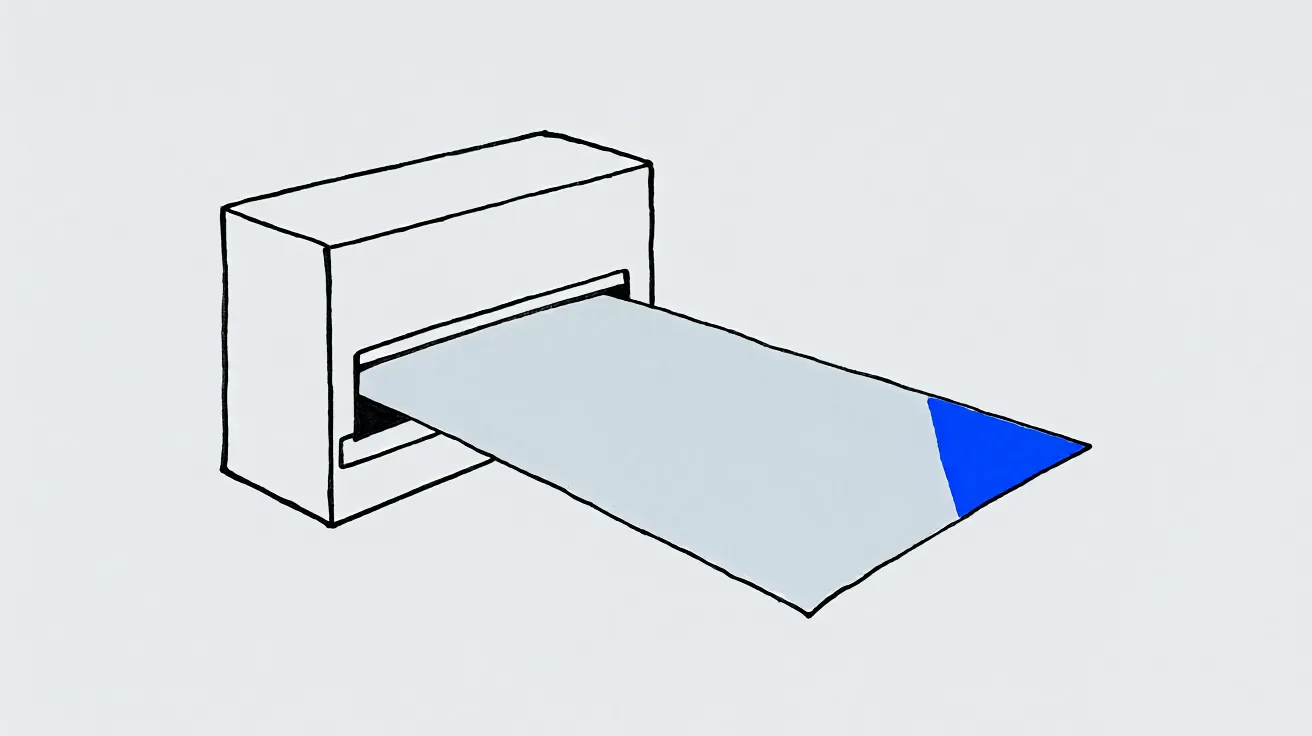
Short answer: to let teachers write comments on a student’s Word file inside Moodle’s assignment grader, Moodle first converts the file to PDF. Core gives you two ways: install LibreOffice through unoconv on the Moodle server itself, or send every file to Google Drive. Our free plugin, fileconverter_gotenberg, adds a third: Gotenberg, a conversion server you run next to Moodle with one Docker command. Files never leave your network.
This is the tenth plugin in our series: one plugin for each Moodle plugin type, each one teaching DevLMS Studio, our AI plugin builder, how that type works.
Setting it up
- Start Gotenberg:
docker run -d --restart unless-stopped -p 3000:3000 gotenberg/gotenberg:8 - In Moodle: Site administration > Plugins > Document converters > Manage document converters, enable Gotenberg, and put it first.
- In its settings, enter the Gotenberg address, for example
http://gotenberg:3000.
It converts doc, docx, odt, rtf, txt, xls, xlsx, ods, ppt, pptx and odp to PDF. If Gotenberg is down or answers with something that is not a PDF, the conversion is marked failed and Moodle tries the next converter in the list. It supports Moodle 4.5 LTS to 5.3. The code is on GitHub.
The part that took longest
Moodle blocks its own outgoing requests to private network addresses, and to any port except 80 and 443. That protects sites from being tricked into calling internal services, and a self-hosted Gotenberg sits on exactly such an address and port (http://gotenberg:3000). Our first real test failed with “The URL is blocked.”
Moodle’s own code has the answer: its Solr search engine and its Python machine learning backend also call servers an administrator configured on the internal network, and both skip that check. Our converter does the same, only for the Gotenberg address an administrator enters, and the README says so. Keep Gotenberg on a private network.
How a document converter works
From Moodle 5.3’s file conversion code and its Google Drive converter:
- A converter is one class that says which formats it handles, and converts one file when asked. Moodle tries each enabled converter in order until one succeeds.
- The result is stored by Moodle as a new file. The converter only sets “complete” or “failed”.
- A 200 answer is not proof. A proxy or login page can answer 200 with HTML, so we check that what comes back is really a PDF.
We tested it with PHPUnit against a fake server, then for real: a Word file sent through Moodle’s own conversion code to Gotenberg 8, returning a 29 KB PDF.
Need a plugin like this for your own Moodle?
Describe it in DevLMS Studio and watch it built and tested in a real Moodle, or ask our team for a fixed price.
Open DevLMS Studio